This article will help you understand the dynamics behind the execution of processes from the command line-terminal and ways to make it efficient. We’ll also explore the use of a terminal multiplexer called ‘tmux’ to run processes such as Jupyter Notebooks and Python/Bash scripts in your laptop or server background without any interruption.
If you use Jupyter Notebooks, you have probably seen the command line terminal (CMD), or you have run scripts in it. If you run a Jupyter Notebook from CMD, you have to keep the window open to make sure that your notebook server doesn’t shut down. Many times, you would want to run Python apps (in Flask/Django), which require the command line terminal to remain open. This can interfere with the process, and it is challenging to keep Flask apps running for a longer time in ‘debug’ mode.
Is there a way to run processes and apps in an uninterrupted background window that can be exited and entered at any time? The answer is Yes. You can run it in a ‘tmux’ session. But before we dive deeper into Tmux, let’s understand the process of interaction between the CMD and your computer.
Interaction of CMD with your computer/server
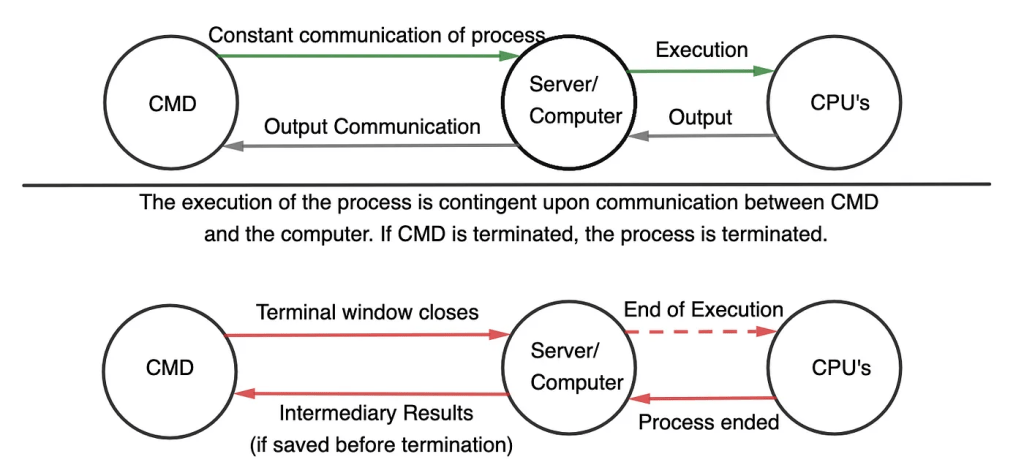
As the name suggests, the CMD terminal commands the computer/server to run a certain process using its processor (CPU cores). For Python scripts or applications that take a lot of time to run or processes that have to keep running, the CMD is in constant interaction with the CPU and pulls information on the status of your process. The computer sends a hangup signal to the CMD terminal which doesn’t allow you to run another command or exit until the process is complete. You see this information in the output of the CMD terminal. Hence, if you close the CMD terminal, the signal breaks and your process is shut down since the CPU loses contact with the terminal that is commanding it to keep the process running.
Disowning a process (not an optimal way)
A process remains connected to your command line terminal because, in technical terms, the user ‘owns’ the process. A simple way to run a process without interruption of the user is to ‘disown’ the process and let it run independently. Let’s run a simple Python script that runs for 200 seconds and makes a .txt file. Here’s what our python file (script.py) looks like:
https://gist.github.com/sohitmiglani/6d6a6a340c5ea981b0fea2b5f34e9f31.jsYou can go ahead and run the script above with the following command:
python3 script.py
The number ‘34917’ is the job-id of our process. We can use this ID to track the process. To check the job status, use the command ‘ps aux | grep <job-id>’. Here, ‘ps aux’ lists all the running jobs on your computer whereas ‘grep’ is a search command that filters the jobs with the given job-id. Here is the output:

The second line of the output corresponds to the python job which was executed at 2:15 AM in my local time (yes, I’m a night owl). This means that the process is still running. If there is no output or you don’t see a python script in the list of running jobs, it means that the script execution has terminated (either because it finished or it had an error). Go to your current directory and check file.txt to check the execution of the script.
If you want to terminate a disowned process before its completion, you can simply type the command ‘kill <job-id>’ and the process will be terminated. In our case, the command would be:
kill 34917Drawbacks of disowning a process
If you disown a process, you can’t keep track of real-time logs or printed outputs. Logs can be especially helpful if you’re debugging Python apps. If your Python script threw an error, your disowned process will terminate and you won’t have any logs of the error unless you use special libraries in Python to log all the outputs.
Another big disadvantage is that a disowned process isn’t easily accessible. You need to use the job-id to find the process to check or kill it. Amongst hundreds of processes, finding your job can be very tricky sometimes.
Other Similar Solutions (also not optimal)
A similar solution (made for Python Scripts) is called ‘nohup’. Nohup executes and saves the output to a logfile of your choice. Let’s execute our script using nohup. Run the following command in the same directory as script.py:
nohup python script.py > output.log &
In the command above, nohup runs the command ‘python script.py’ and saves the output to the file ‘output.log’ in the same directory. It provides us with the job-id which is 47317. Nohup allows for easy access to logs but dynamic debugging and interaction with the process is still very tricky.
Remote processes
When you disown a process, it runs in the background and you (the current user) aren’t the owner of the process anymore. In technical terms, the process becomes ‘remote’ since it is not connected to your CMD interface. Remote processes make more sense when you’re working on a grid computer and sending jobs to a computing cluster for execution.
When dealing with remote processes, it is a good practice to provide full pathnames to files instead of just the file name. This is because remote processes don’t operate in the same directory as yours (since they’re not connected to your interface anymore). Thus, the process may not be able to find the file. Let’s modify our nohup command to reflect this.
nohup python /users/sohit/Desktop/script.py > output.log &Terminal Multiplexers to the rescue
So far, we’ve learned about the execution of processes in your terminal window and ways to remove that connection so that the process isn’t interrupted. For us to be able to have easy access to the process without interrupting it, we will use something called ‘tmux’. Tmux is a terminal multiplexer software that creates pseudo-terminal windows. It is basically a session of a command-line terminal that can be entered and exited at any time from your main command-line terminal.
Inside a tmux session, you can do everything that you can do on a normal CMD terminal. The advantage is that you can exit the session to go back to your original CMD terminal and then come back at any point. Before we get started, let’s install tmux on your laptop. Follow the instructions here to install tmux on your computer.
I’ve recorded a walkthrough video to demonstrate the use of tmux. You can watch it below:
To exit a tmux session, press control and ‘B’ together. Then, press ‘D’ to detach yourself from the session. You can also create sessions with a specific name using the following command:
tmux new -s '<name>'You can list all running tmux sessions using ‘tmux ls’. You can attach your window to a specific session using its name in the following command:
tmux a -t ‘<name>’You can also kill a particular session using the following command:
tmux kill-session -t ‘<name>’For a complete list of shortcuts and operations, check out this gist made by Mohamed Alaa on Github. If you have any questions, feel free to email me at sohitmiglani (at) gmail.com or connect with me on LinkedIn here.
 Sohit Miglani
Leave a comment